
Loksewa Computer Test: Full Preparation for the 10-Mark, 15-Minute Exam
The Loksewa computer test for Kharidar and Nayab Subba: the three parts and their marks, the PSC's sample Word tasks step by step, how typing is scored, common mistakes and a two-week practice plan.
After passing the written exam, both Kharidar (खरिदार) and Nayab Subba (Nasu, नायब सुब्बा) candidates sit a computer skill test in the final stage. This 10-mark practical exam is over in 15 minutes, but its marks go straight into the final result. In the loksewa computer test many people practise only typing speed and then lose marks on small MS Word tasks. This article explains the format from the PSC syllabus, how to do the sample tasks, how marks are given and how to get ready in two weeks.
Loksewa computer test format
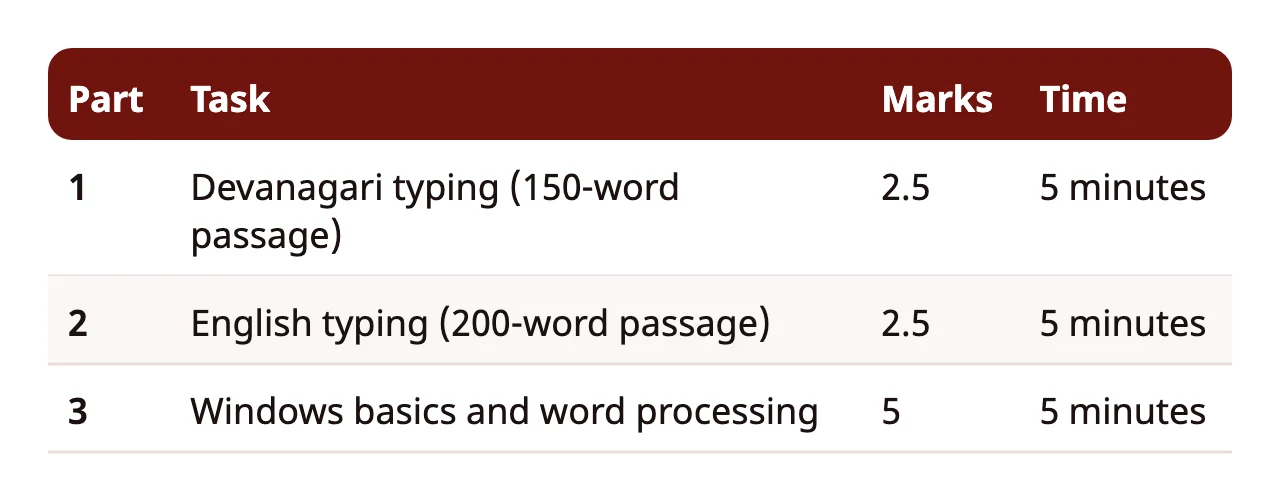
Both the PSC's Kharidar syllabus and Nayab Subba syllabus set a 40-mark final stage: the computer skill test of 10 marks and the interview of 30 marks. The computer skill test has three parts:
- Devanagari typing: a 150-word passage to type in 5 minutes, 2.5 marks.
- English typing: a 200-word passage, 5 minutes, 2.5 marks.
- Windows basics and word processing: set tasks in 5 minutes, 5 marks.
Typing marks are based on correct words per minute. The full table of how much speed earns how many marks, with the formula, is in our Nepali typing speed guide.
What is in the syllabus?
The syllabus names two areas.
Windows basics: an introduction to the graphical user interface, starting and shutting down Windows, basic elements such as the desktop, taskbar, My Computer and Recycle Bin, the idea of files and folders, and how to search for files and folders.
Word processing (MS Word): creating, saving and opening documents; typing in Devanagari and English; character formatting (font, size, colour, underline, italic, bold) and paragraph formatting (alignment, indentation, spacing); adding a header, footer and page numbers; and page settings (margins, page size, orientation), preview and print.
The list looks short, but in the exam these tasks must be quick and correct. Five tasks in 5 minutes means one minute per task.
The PSC sample: five Word tasks
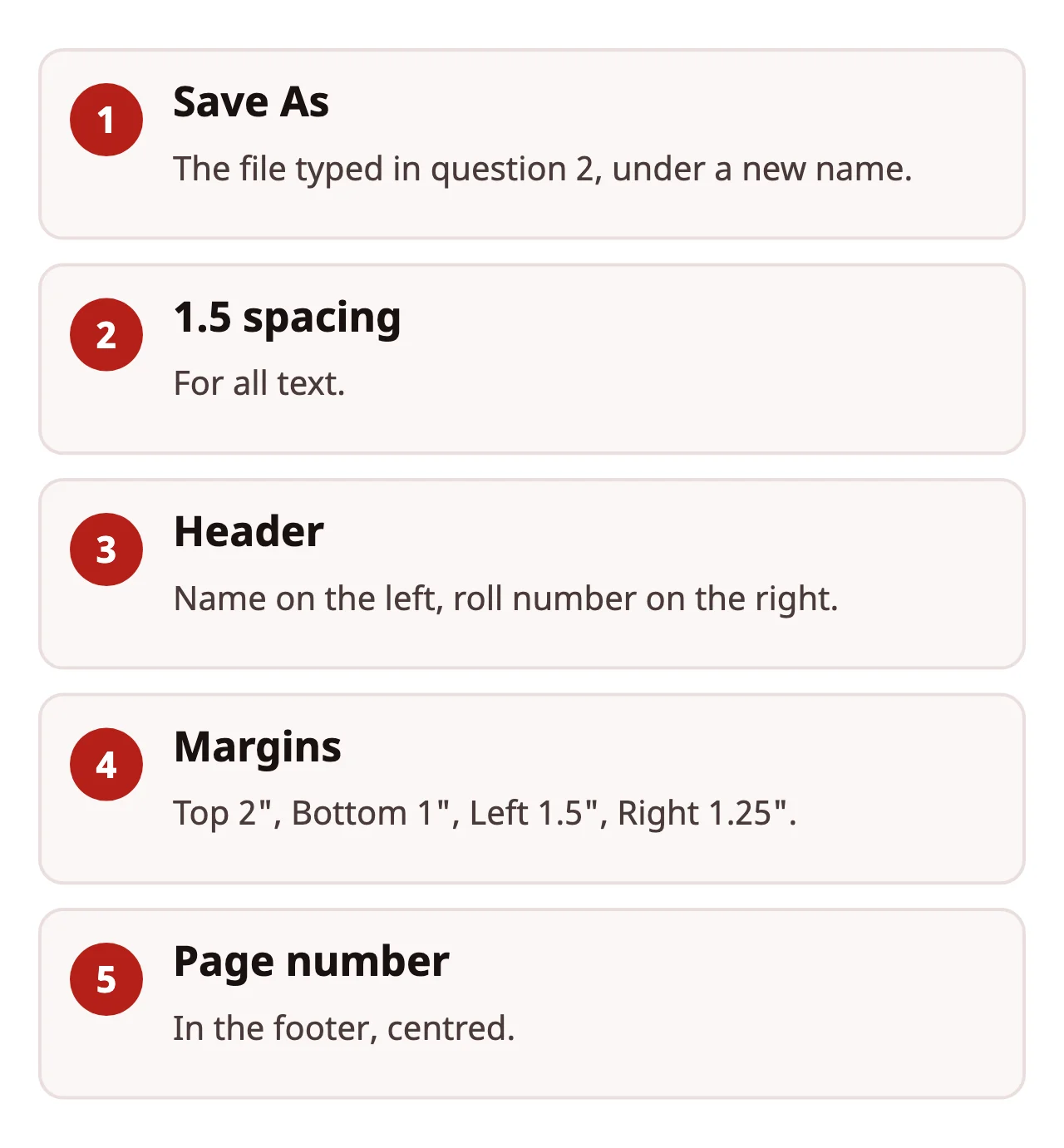
According to the sample in the syllabus, the word-processing part has five tasks like these, 1 mark each:
1. Save the file under another name
Open the document you typed in the second question (English typing) and save it under another name. Use File > Save As (or F12) and give the name the examiner asks for. If you press Save by mistake, you change the old file, so read the name carefully.
2. 1.5 line spacing for all the text
Select all the text with Ctrl + A, then press Ctrl + 5 or choose 1.5 under Line and Paragraph Spacing on the Home tab. If you do not select all the text, the spacing applies to one paragraph only.
3. Name and roll number in the header
Go to Insert > Header and put your name on the left and your roll number on the right. The Blank (Three Columns) style gives left, centre and right places; delete the empty centre one. Another way: type your name, press Tab until you reach the right, and type your roll number.
4. Set the margins
The sample gives Top 2 inches, Bottom 1 inch, Left 1.5 inches and Right 1.25 inches. Enter these in Layout > Margins > Custom Margins. If the computer shows centimetres, type the number followed by " (the inch sign); Word converts it.
5. Page number centred in the footer
Choose the centre option (Plain Number 2) in Insert > Page Number > Bottom of Page. When all tasks are done, do not forget to save again with Ctrl + S.
In the exam the tasks may come in a different order and other tasks may be given, but practise every syllabus topic (font, alignment, indentation, orientation, page size, preview) the same way.
How to protect your typing marks
Typing counts both speed and accuracy. The Commission's formula: correct words per minute = (total words typed − wrong words) ÷ 5. A word typed without the punctuation shown in the passage is not counted. So:
- Do not leave out full stops, commas and question marks.
- If you mistype in a hurry, fix it with Backspace, but do not spend long on one word.
- Practise typing while looking at the passage (touch typing); looking at the keyboard halves your speed.
You can measure your speed with the Commission's own formula in our Nepali typing test.
Common mistakes
- Feeling lost on a computer: people who use only a phone at home get confused at the exam centre's desktop. Practise on a desktop or laptop.
- Not knowing your Word version: tab names differ between old and new versions (Page Layout or Layout). Learn both.
- Forgetting to save: if you do the tasks but do not save, you may get no marks.
- The Nepali keyboard layout: ask at the centre or check the Commission's notice for the font and layout used in the exam, and match it with the layout you practise.
- Not reading the instructions fully: swapping "left" and "right", or "header" and "footer", costs the whole mark.
A two-week practice plan
Week 1: 20 minutes of Nepali and 20 minutes of English typing every day; accuracy first, then speed. Along with that, 10 minutes a day on one or two Word tasks (spacing, header, margins).
Week 2: a full 15-minute sample exam every day: 5 minutes of Nepali, 5 of English and 5 of Word. After each one, work out your correct words per minute and write down which task took the longest.
If you start only after the written result, you may run short of time. Practising typing two or three days a week alongside your written-exam preparation is the safe way.
The Dipa App's Computer Skill Test and Typing course has videos and practice for these tasks, and the final stage pack also covers interview preparation. With the desktop app you can watch the video on your laptop and practise in Word at the same time; see the desktop app.
Also check computer knowledge MCQs
The computer skill test is practical, but knowing basics such as shortcuts, file extensions and memory makes your tasks faster and may come up in the interview. Our computer basics questions (in Nepali) have answers and explanations.
Basic Windows tasks
Windows basics are in the syllabus too, and even in Word tasks you open, save and find files in Windows. Practise these until you can do them without thinking:
- New folder: right-click on the desktop or in File Explorer and choose New > Folder, or press Ctrl + Shift + N.
- Rename: select a file or folder and press F2.
- Find a file: type the file name or extension (for example .docx) in File Explorer's search box.
- Restore a deleted file: open the Recycle Bin, right-click the file and choose Restore.
- Shut down properly: Start > Power > Shut down; do not just press the switch.
If the exam says "save the file in such-and-such folder", remember to pick the right folder from the list on the left in Save As. The examiner may not find a file saved in the wrong place.
What to expect at the exam centre
You may not know in advance which versions of Windows and Word the centre's computers have. So practise on two different versions if you can, not just one. Listen carefully to the invigilator's instructions before the test starts: the file name, where to save and what to do when time is up are told there. If something technical goes wrong (a keyboard that does not work, a frozen computer), tell the invigilator at once; trying to fix it yourself wastes time.
Conclusion
The 10 marks of the computer skill test are the easiest marks to earn, but without practice these are the marks you lose. Accuracy in typing, speed in the five Word tasks and the habit of saving get you close to full marks. The other part of the final stage is covered in our interview guide, Lok Sewa interview questions (in Nepali).
How to do the word-processing part of the computer skill test
- Save under a new name: Go to File > Save As and give the name the examiner asks for.
- Line spacing: Select all text with Ctrl + A and set line spacing to 1.5.
- Header: In Insert > Header, write your name on the left and your roll number on the right.
- Margins: Enter the given measurements in Layout > Margins > Custom Margins.
- Page number: Choose the centre option in Insert > Page Number > Bottom of Page, then save.
Frequently asked questions
How many marks is the Lok Sewa computer skill test?
For both Kharidar and Nayab Subba, the final-stage computer skill test is a 10-mark practical exam lasting 15 minutes: Devanagari typing 2.5, English typing 2.5, and Windows and word processing 5 marks.
What tasks are given in the computer test?
In the PSC's sample: save the typed file under a new name, set 1.5 line spacing for all text, put your name on the left and roll number on the right of the header, set the margins, and put the page number in the centre of the footer.
Are the computer test marks added to the final result?
Yes. Under the syllabus, the final result is published from the total of the Stage II main exam and the final stage (the computer skill test and the interview).
Sources
- Kharidar or equivalent syllabus: computer skill test (PDF, Nepali), Public Service Commission (2024-07-25)
- Nayab Subba or equivalent syllabus: computer skill test (PDF, Nepali), Public Service Commission (2024-07-25)
Courses for this topic
Lok Sewa Computer Skill Test and Typing
The 10-mark final-stage computer test: Windows, MS Word, Nepali and English typing.
Final Stage Pack: Computer Test + Interview
Passed the written exam? The 40-mark final stage: typing, computer skills and the interview.
Lok Sewa Interview Preparation
The 30-mark final interview: the questions asked, sample answers and mock interviews.

Study in the Dipa App
Buy courses, join Live Classes and practise every day in the app. Payment works inside the app with eSewa.

Author
Dipa Academy editorial team
Dipa Academy's editorial team writes Lok Sewa guides from the Public Service Commission's official syllabus, notices and results, and cites every source.
Read next
Loksewa Interview Questions and How to Answer Them
21 November 2026 (मंसिर ५, २०८३)Nepali Typing Speed for Lok Sewa: How Many Words for How Many Marks
11 November 2026 (कात्तिक २५, २०८३)Top 10 Loksewa Institutes in Nepal (2026): How to Choose
21 November 2026 (मंसिर ५, २०८३)